
Updated March 1, 2026 · 6 min read
How to Fill Out a Time Card Before Submitting to Payroll
Learn how to fill out a time card correctly before payroll: pay periods, clock times, break deductions, and how a free time card calculator helps you verify totals.
Submitting a time card with missing days, wrong break deductions, or mismatched decimal hours is one of the fastest ways to delay payroll. Whether your employer uses paper timesheets, a portal upload, or email, the same rules apply: record accurate clock times, align your dates with the official pay period, and verify totals before payroll closes. This guide walks through how to fill out a time card step by step—and how a free time card calculator helps you catch errors before submission.

What belongs on a payroll time card
A payroll-ready time card answers one question for each day you worked: how many paid hours did you earn? At minimum, most employers expect the date (or day of week), clock-in time, clock-out time, and any lunch break time deducted from that shift. Many forms also ask for your name, employee ID, department, or supervisor signature line.
Paid hours are not always the same as time spent on site. If you take an If you take a lunch break, those minutes come off your shift total. Paid rest breaks may stay on the clock depending on company policy—when in doubt, ask HR before you submit. The goal is to show net hours payroll can multiply by your hourly rate, not raw time between first arrival and last departure.

Some time cards include columns for job codes, project numbers, or PTO. If yours does, fill those fields exactly as your manager instructed. For standard hourly work, though, clock times and break deductions carry most of the weight. Getting those right first prevents rework later.
Step 1: Match your employer's pay period
Before you write a single clock time, confirm which pay period you are reporting. Weekly payroll covers seven consecutive days. Bi-weekly covers fourteen. Some employers use custom ranges—ten-day semi-monthly windows, mid-cycle hire periods, or other schedules that do not fit a standard week. If your dates do not match payroll's official range, your hours may be rejected even when daily entries look correct.
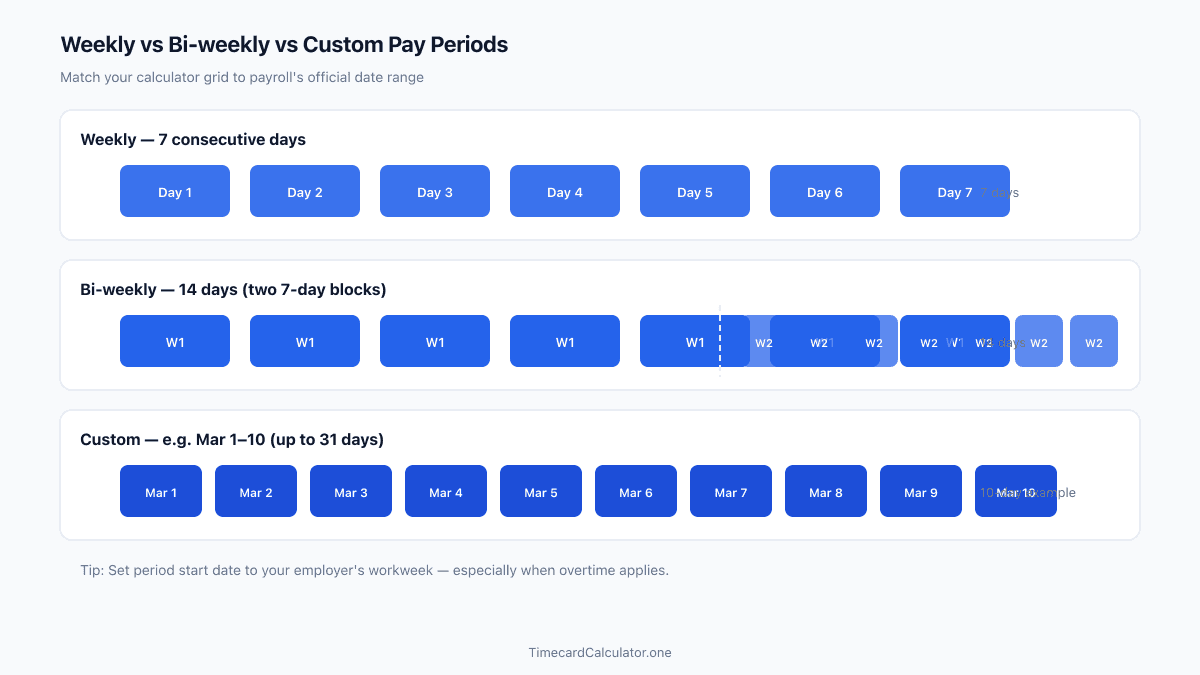
Note the period start date, especially if overtime applies. Many payroll systems calculate overtime in fixed 7-day workweeks beginning on that start date—not always Monday. A free online time card calculator lets you switch between Weekly, Bi-weekly, and Custom modes so your grid matches what payroll expects. For a quick weekly grid only, try our timesheet calculator; for a standard two-week card, use the biweekly time card calculator. In Custom mode on the homepage tool you can set any start and end date up to 31 days—useful when your cycle is not exactly one or two weeks.
Check only the days you actually worked. Blank days should stay empty or unchecked so they do not inflate totals. If you started mid-period, begin your entries on your first day of work, not on the calendar start of the company pay cycle unless HR tells you otherwise.
Step 2: Enter clock times correctly
Record the time you started paid work and the time you finished—not rounded guesses from memory. Use the same format your employer prefers: 12-hour AM/PM or 24-hour military time. Mixing formats on one card causes confusion. A time card calculator accepts either format and stores times internally in 24-hour form so math stays accurate while your summary, print view, and CSV export display the format you chose.
Enter times to the minute when possible. Payroll systems often convert minutes to decimal hours (for example, 7 hours 30 minutes becomes 7.50). You do not need to convert manually if you use a calculator—it shows both colon format (7:30) and decimal format (7.50) per row. That dual display makes it easy to compare your card against what payroll software expects.

For a single shift, you can double-check hours in our work hours calculator before copying totals to your card. If you work an overnight shift that crosses midnight, clock-out can look earlier than clock-in on paper (out at 6:00 AM, in at 10:00 PM). Do not skip the day or subtract incorrectly—see our guide on overnight shift hours for how cross-midnight shifts should be logged.
Step 3: Deduct lunch breaks
Unpaid meal and rest breaks reduce net paid hours. If you work 9:00 AM to 6:00 PM with a 30-minute lunch break, your paid time is 8.5 hours—not nine. On a paper card, write break minutes in the column provided or subtract them before totaling the day.

Our time card calculator offers two approaches: enter break minutes per day, or open Advanced Options and enable Default lunch break to apply one break duration to every working day at once. The second option saves time when every shift uses the same lunch length. You can also use the dedicated break time calculator to see gross shift length, break deducted, and paid time remaining for one shift. Either way, break time is subtracted from gross shift length before daily and weekly totals are calculated.
Do not deduct paid breaks. If your employer pays for short rest periods, leave them in your total. Misclassifying a paid break as unpaid under-reports your hours and can reduce your paycheck.
Step 4: Review totals before you submit
Before you send your time card to payroll, scan for these common mistakes:
- Missing days you actually worked
- Duplicate entries for the same shift
- Break minutes larger than gross shift length
- Decimal hours that do not match clock in/out math
- Period dates that do not align with the official pay cycle

Compare your weekly or pay-period total against your schedule. If Advanced Options are enabled, review overtime estimates separately—hours above the threshold (often 40 per workweek) may pay at 1.5×. These figures are estimates; final overtime depends on employer policy and state rules.
When totals look right, you are ready to submit—or print or export a CSV if payroll asked for a file attachment.
Verify with a free time card calculator
Running your entries through a calculator takes a few minutes and catches arithmetic errors that are easy to miss by hand. Open the time card calculator, select your pay period mode, enter clock times and breaks, and compare the summary table to your paper draft. If numbers match, submit with confidence. If they differ, fix the row that disagrees before payroll processes the run.

The tool runs in your browser—no account, no download. You can print a clean summary for your records or download CSV when HR needs a digital copy. For custom-length pay periods, switch to Custom mode and set dates that mirror your employer's cycle exactly.
Need a printable template? Download a free employee time card or biweekly timesheet in PDF or Excel.
Download PDFFill out your time card with confidence
Use our free time card calculator to enter clock times, deduct breaks, and verify decimal hours before you submit to payroll.
FAQ
Do I include lunch on my time card?
Only if lunch is paid. Most hourly roles treat meal breaks as unpaid, so you record clock-in and clock-out and subtract lunch break minutes. Your time card should show net paid hours, not time spent in the break room.
What if I forgot to log a day?
Add the missing day before submitting. Reconstruct times from schedules, badge data, or manager confirmation. Re-run the calculator to confirm the updated weekly total.
Who checks my time card before payroll runs?
Supervisors or HR typically review hours against schedules and policies. Accurate entries speed approval and reduce paycheck corrections.
Estimate only. Not tax, legal, or payroll advice. Overtime rules, break policies, and rounding vary by employer, state, and country. Confirm totals with your payroll department before submitting a timesheet.
Related guides
 Free Guide6 min read
Convert Clock Time to Decimal Hours for Payroll (Chart + Formula)
Why payroll wants 7.75 instead of 7:45, the divide-by-60 formula, and how to avoid the most common conversion error on your time card.
 Free Guide6 min read
Print or Export Time Cards to CSV for Payroll (Free Guide)
When to print, download PDF, or export CSV, what payroll-ready columns look like, and how to export from our free calculator.
 Free Guide6 min read
Time Card Overtime Calculator: Weekly OT Thresholds Explained
Why bi-weekly OT is not total hours minus 80, how to set threshold and multiplier, and how to align your workweek start with payroll.