
Updated March 1, 2026 · 6 min read
Print or Export Time Cards to CSV for Payroll (Free Guide)
Print or download PDF time cards for HR, or export CSV for payroll. Learn decimal hours, column mapping, and payroll-ready exports from our free calculator.
After you fill out a time card, payroll often wants more than a screenshot—they need decimal hours in a format their software can import or a clean printed summary they can file. Knowing when to print a time card versus when to export time card data to CSV saves back-and-forth with HR. This guide explains both workflows and shows how our free time card calculator on the home page produces payroll-ready print, PDF, and CSV output. For weekly hour totals without export, see the timesheet calculator and biweekly time card calculator.
Why payroll wants decimal hours in CSV
Payroll software multiplies hours by rate. That math is simplest when hours appear as decimals: 7 hours 30 minutes becomes 7.50, not 7:30. The conversion formula is straightforward—divide minutes by 60 and add the result to whole hours. Fifteen minutes is 0.25; forty-five minutes is 0.75. Most systems store two decimal places.

Manual conversion across a full week invites errors, especially when breaks and overtime split hours across categories. A time card calculator performs minute-level arithmetic and displays decimal totals automatically. When you export time card to CSV, each row includes paid hours already converted—so payroll does not re-key colon-format times by hand.
CSV (comma-separated values) is a plain-text format Excel, Google Sheets, and many payroll platforms open without special software. That is why export timesheet CSV files are common for small teams that still process hours outside a full time-clock system.
What a payroll-ready export should include
A useful export identifies the employee, the pay period, and each day's detail. Our calculator's CSV includes header rows for employee name, pay period label, and hourly rate (when entered), followed by a table with these columns:
- Date and day of week
- Clock in and clock out (in your chosen AM/PM or 24-hour format)
- Break minutes deducted
- Paid hours (decimal)
- Estimated day pay (when hourly rate is set)
For a signed paper copy or email attachment that looks like a filled time card template, use Download PDF on the summary—the layout matches the print view (employee, period, daily rows, and totals) in a single file HR can open without reformatting.

Summary lines at the bottom list hours before breaks, total paid hours, and gross pay estimate. If you enabled Advanced Options for overtime, gross pay reflects regular and overtime portions based on your threshold and multiplier settings—still an estimate until payroll confirms policy.
Before sending the file, scan for blank rows on days you did not work and confirm the pay period label matches what HR expects. A clear time card before payroll review catches most issues before export.
How to print a time card for HR
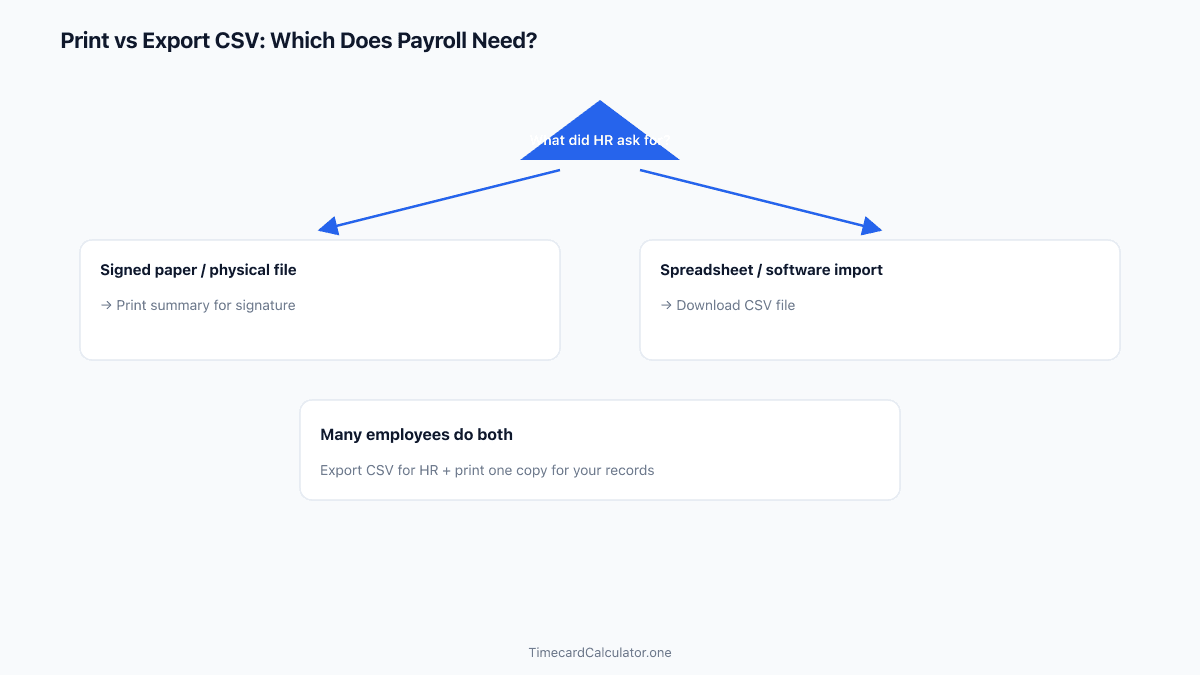
Printing works well when a manager needs a signed paper copy or you want a personal record. After entering your hours in the calculator, use yourPrint button or Download PDF on the printable summary section. Both use the same clean layout: navigation is hidden, the brand header appears, and the table lists daily entries and period totals—like a time card template filled from your actual clock data, not a blank form.

Before printing, verify employee name, period dates, and daily times one last time. Sign the printout if your employer requires it, and keep a copy for yourself in case payroll questions a specific day later in the month.
Print is best for archival and walk-up approvals. It is less ideal when payroll needs to import numbers into software—use CSV for that workflow.
Export CSV from the time card calculator
Follow these steps to download a payroll-ready file from our free tool:

- Open the online time card calculator (home page) and select Weekly, Bi-weekly, or Custom to match your pay period—or draft hours first in the timesheet / biweekly calculators, then transfer totals into the full tool for export.
- Set the period start date (and end date in Custom mode) to align with payroll's official range.
- Enter clock-in, clock-out, and break minutes for each working day. Add an hourly rate if you want pay estimates in the export.
- Review the summary table—confirm decimal paid hours per day and the period total.
- Click Download CSV for payroll software, or Download PDF for a printable template-style summary. Save files with descriptive names such as
timecard-2026-03-01-to-2026-03-14.csvortime-card-2026-03-01.pdf.
You can re-export anytime after editing entries. For custom-length cycles, see our guide on custom pay period time cards when your range is not exactly seven or fourteen days.
Map CSV columns to your payroll workflow
Every payroll process differs, but most teams map a few core fields: employee identifier, pay period end date, regular hours, and overtime hours. Our export provides daily paid hours in decimal form and summary totals you can transcribe or import depending on what your system accepts.
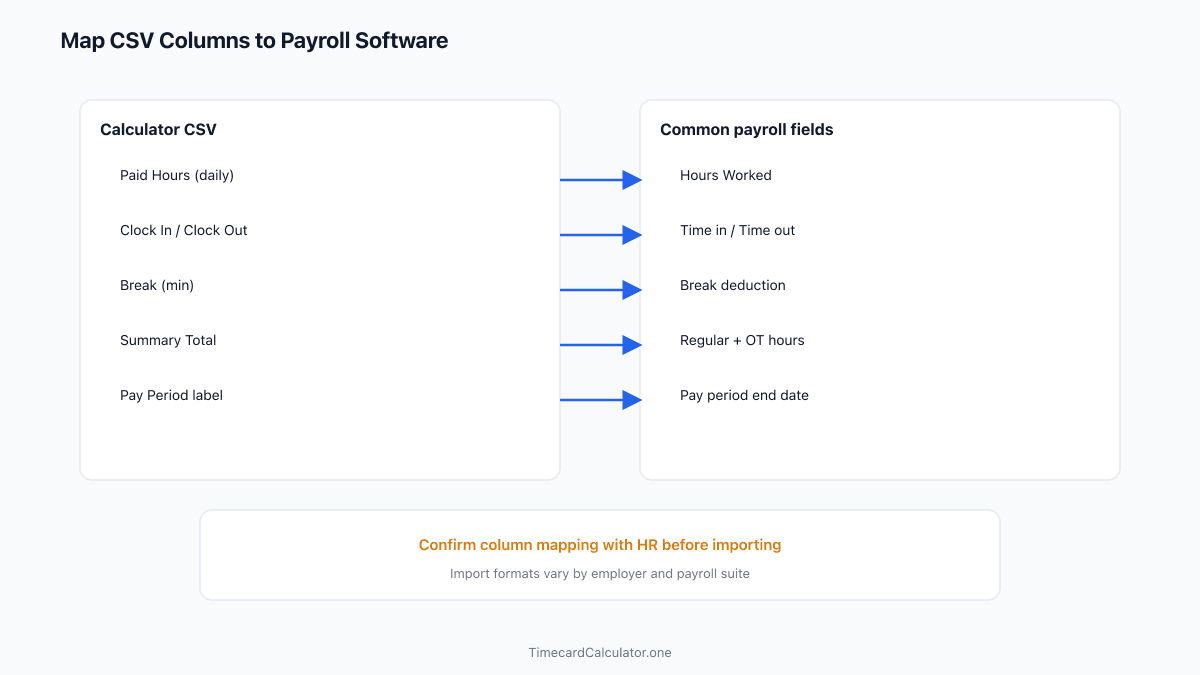
If payroll uses a single "hours worked" column per day, use the Paid Hours column from the CSV. If they split regular and overtime manually, compare your calculator summary (with Advanced Options enabled) against their worksheet. Do not assume automatic import into proprietary payroll suites—confirm column mapping with HR first.
Keep the original CSV until the pay stub arrives. If totals disagree, you can trace each day's clock times back to the export row.
Print, PDF, or CSV: which to use when
Print or Download PDF when you need a physical signature, an email-friendly attachment, or a personal backup that looks like a completed time card template. CSV when payroll asked for spreadsheet data they load into software. Many employees export CSV for HR and keep a PDF for their records.

Night-shift workers with cross-midnight entries should still export from the calculator rather than retyping corrected hours. The tool handles overnight math automatically; manual CSV edits often reintroduce the midnight error. Read our overnight shift hours guide if that applies to you.
Need a printable template? Download a free employee time card or biweekly timesheet in PDF or Excel.
Download PDFExport your time card in one click
Enter your hours in our free time card calculator, then print, download PDF, or export CSV for payroll—no account required.
FAQ
How do I open a time card CSV file?
Open it in Excel, Google Sheets, or Numbers. The file uses standard CSV formatting with comma-separated columns and a header row.
Does the CSV export include overtime hours?
Daily rows show paid hours; summary lines include gross pay estimates when you set an hourly rate and enable overtime options. Confirm final OT with payroll—rules vary by employer and state.
Can I export the same time card more than once?
Yes. Update entries and click Download CSV again. Use filenames that include pay period dates so HR can match the correct run.
Estimate only. Not tax, legal, or payroll advice. Overtime rules, break policies, and rounding vary by employer, state, and country. Confirm totals with your payroll department before submitting a timesheet.
Related guides
 Free Guide6 min read
Convert Clock Time to Decimal Hours for Payroll (Chart + Formula)
Why payroll wants 7.75 instead of 7:45, the divide-by-60 formula, and how to avoid the most common conversion error on your time card.
 Free Guide6 min read
How to Fill Out a Time Card Before Submitting to Payroll
A step-by-step guide to recording clock times, deducting breaks, and double-checking totals before you hand your time card to payroll.
 Free Guide6 min read
Time Card Overtime Calculator: Weekly OT Thresholds Explained
Why bi-weekly OT is not total hours minus 80, how to set threshold and multiplier, and how to align your workweek start with payroll.