
Updated March 1, 2026 · 6 min read
Custom Pay Period Time Cards: Track 10–31 Days Without Errors
Track custom pay periods from 10 to 31 days with a time card calculator. Learn how 7-day overtime blocks work, semi-monthly examples, and how to export custom-range totals for payroll.
Not every employer runs payroll on a clean Monday-to-Sunday week or a standard fourteen-day bi-weekly cycle. Semi-monthly windows, ten-day periods, and mid-cycle hire ranges need a custom pay period time card that still calculates breaks, decimal hours, and overtime correctly. This guide explains when to use Custom mode, how 7-day overtime blocks work for ranges up to 31 days, and how our time card calculator keeps long periods organized without spreadsheet errors.
When weekly or bi-weekly is not enough
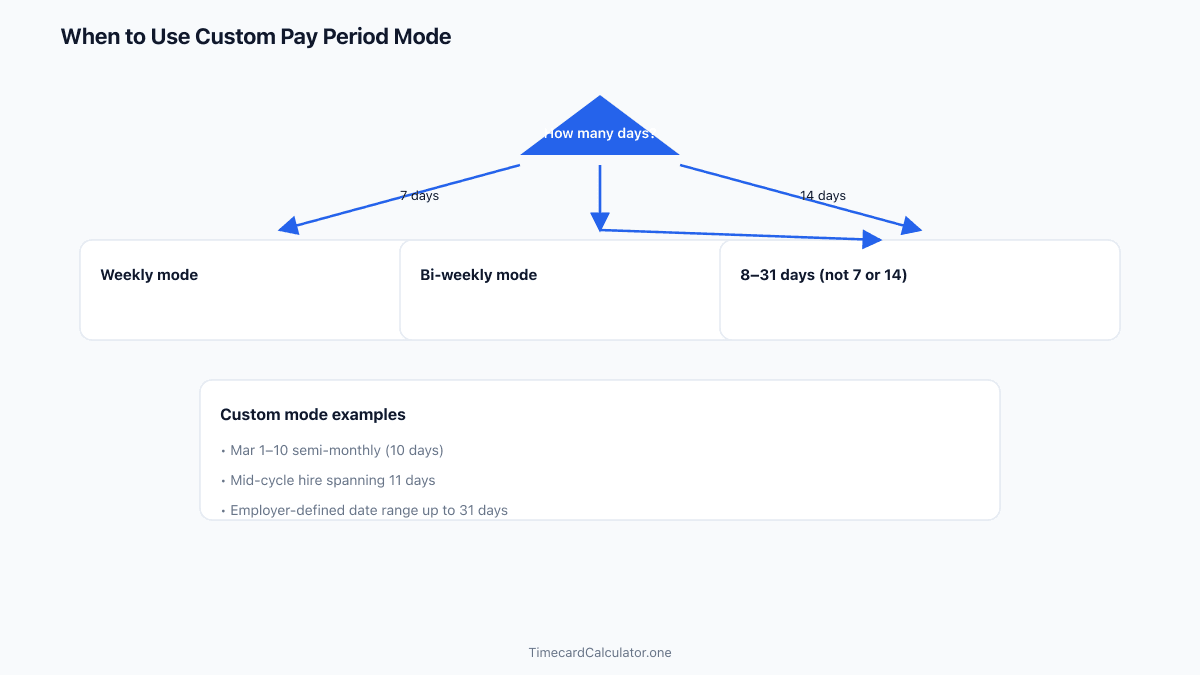
Weekly mode fits a seven-day cycle. Bi-weekly covers fourteen days with two independent overtime thresholds—one per workweek block. But some payroll schedules do not match those lengths: a ten-day semi-monthly span, an employer-defined period from the 1st through the 10th, or a new hire starting mid-cycle who only needs eleven days on the first card.
Forcing those hours into a weekly grid produces wrong dates or blank rows that confuse reviewers. Custom date range mode lets you set an exact start and end date so each working day in that span gets its own row. That is the core of a custom pay period time card—accuracy starts with matching payroll's calendar, not squeezing data into the wrong template.
If your cycle is always exactly fourteen days aligned to your company workweek, the biweekly time card calculator may be simpler. Choose Custom on the home page when the day count falls between eight and thirty-one and is not a multiple of seven—or when HR gives you explicit start and end dates that do not fit preset modes.
How Custom mode works (up to 31 days)
In our time card calculator, select Custom and set the period start and end dates. The tool supports ranges up to 31 days—the maximum defined in the app. Each day in the range appears in the grid; check only days you worked and enter clock-in, clock-out, and break minutes for each.

AM/PM and 24-hour entry both work. Default lunch break in Advanced Options can apply one break duration to all working days, or you can enter break minutes per row. Summary totals show colon format and decimal paid hours, plus optional gross pay when you add an hourly rate and enable Advanced Options.
Custom mode is ideal for a custom date range timesheet when HR says "submit hours from March 1 through March 10" instead of "submit this week." You are not limited to calendar weeks—you are limited to thirty-one days per card, which covers virtually all semi-monthly and ad-hoc employer windows.
Overtime in custom ranges: 7-day blocks
A common mistake is assuming overtime applies to the entire custom range as one bucket. Our calculator does not do that. Instead, it splits the range into consecutive 7-day workweeks beginning on your period start date—days 1–7, then 8–14, then 15–21, and so on—and applies the overtime threshold separately to each block.

That mirrors how many payroll systems apply weekly overtime rules within longer pay periods. A ten-day custom period spans two blocks: seven days in the first block and three in the second. Each block gets its own forty-hour threshold (or whatever you set in Advanced Options).
Bi-weekly mode uses the same block logic for its fourteen days—the biweekly calculator estimates OT per week when you enter an hourly rate. Custom mode on the homepage extends block logic to any length up to thirty-one days. For OT estimates without a full card, try the overtime calculator. If your start date is wrong, blocks misalign with HR's workweek and OT estimates look off even when daily hours are correct.
Example: 10-day semi-monthly period
Suppose payroll asks for March 1–10 (ten days) and your overtime threshold is forty hours per 7-day block with a 1.5× multiplier:
- Block 1 (Mar 1–7): You work 42 paid hours → 2 hours estimated OT in that block
- Block 2 (Mar 8–10): You work 24 paid hours → no OT in that block

Total paid hours for the card: 66. Estimated OT: 2 hours—not 26 hours above a single forty-hour cap for all ten days combined. That distinction is why block-based math matters on a 10 day pay period card.
Enter each day in Custom mode with start date March 1 and end date March 10. The calculator builds the grid, sums daily net hours, and applies thresholds per block automatically when Advanced Options are on.
Set your period start to your employer's workweek
The period start date is not decorative—it anchors every 7-day overtime block. If your company's workweek runs Sunday through Saturday but you start the card on Wednesday, block boundaries will not match payroll's system. Ask HR which date begins the official workweek and set Custom mode's start date to that day when possible.

For a true calendar-bound semi-monthly period (1st–10th), you may have no choice—the start date is fixed by policy. In that case, understand that block 1 may be a partial workweek in HR's eyes; still use the calculator's block output as an estimate and confirm final OT with payroll.
Pair this step with our time card checklist so daily entries and period dates are both correct before you export.
Export and verify custom-period totals
When daily rows look right, review the summary table: total paid hours in decimal form, optional OT breakdown, and gross pay estimate. Print a copy for your records or download CSV with the pay period label embedded in the file header.

Send the export to payroll with the same start and end dates they assigned. If they question overtime, point to the 7-day blocks—not the combined ten- or thirty-one-day total. Keep a copy until your pay stub matches.
Overnight shifts during a custom range follow the same cross-midnight rules as weekly mode—see our overnight shift guide if night work falls inside your custom window.
Need a printable template? Download a free employee time card or biweekly timesheet in PDF or Excel.
Download PDFTrack custom pay periods up to 31 days
Switch to Custom mode in our free time card calculator, set your exact dates, and export decimal hours with 7-day overtime blocks calculated automatically.
FAQ
Can I track more than 31 days in Custom mode?
The calculator supports up to 31 days per card. For longer spans, run separate cards per payroll cycle or use Bi-weekly mode when appropriate.
Should I use Custom or Bi-weekly mode?
Use Bi-weekly for standard fourteen-day cycles. Use Custom when the range is not seven or fourteen days—such as ten-day semi-monthly periods.
What happens if I pick the wrong period start date?
Overtime blocks shift. Reset the start date to your employer's workweek beginning and recalculate before submitting.
Estimate only. Not tax, legal, or payroll advice. Overtime rules, break policies, and rounding vary by employer, state, and country. Confirm totals with your payroll department before submitting a timesheet.
Related guides
 Free Guide6 min read
Time Card Overtime Calculator: Weekly OT Thresholds Explained
Why bi-weekly OT is not total hours minus 80, how to set threshold and multiplier, and how to align your workweek start with payroll.
 Free Guide6 min read
Print or Export Time Cards to CSV for Payroll (Free Guide)
When to print, download PDF, or export CSV, what payroll-ready columns look like, and how to export from our free calculator.
 Free Guide6 min read
How to Fill Out a Time Card Before Submitting to Payroll
A step-by-step guide to recording clock times, deducting breaks, and double-checking totals before you hand your time card to payroll.